Monday, 15 August 2016

What is the Difference between LOCAL AND GLOBAL Cursor

Local Cursor: 

The scope of Local Cursor is limited to the batch, stored procedure or trigger in which it is created. Once the Batch, Stored Procedure or Trigger is completed. The Local Cursor will not be available to use anymore.

GLOBAL CURSOR: 

The scope of GLOBAL Cursor is limited to the connection in which it is created. You can use GLOBAL CURSOR in multiple batches, you can open in first and fetch the data in second. You can also open the GLOBAL CURSOR in one Stored Procedure and Fetch the Data in Next Stored Procedure as long as they are using the same connection.

If you would not use the keyword Local or Global , the Cursor will be created with TYPE by using the Database Setting as shown below. 

Fig 1: Difference between Local Cursor and Global Cursor in SQL Server

Let's create a sample table and insert some records and do some test to prove our above definition.


--drop table dbo.Customer
Create table dbo.Customer ( 
CustomerId Int ,
CustomerName VARCHAR(100),
StreetAddress VARCHAr(100),
City VARCHAR(100),
State CHAR(2))
go

--Insert few Records in Sample Table
Insert into dbo.Customer
Select 1,'Aamir shahzad','Test Street Address','Charlotte','NC'
Union all
Select 2,'M Raza','Test Street Address','Charlotte','NC'
union all
Select 3,'John Smith','Test Street Address','New York City','NY'
union All
Select 4,'Christy Richard','Test Street Address','Rio Rancho','NM'


--Test with GLOBAL Cursor in Multiple Batches. 
use Test
go

DECLARE Customer_Cursor CURSOR 
--use LOCAL OR GLOBAL HERE
GLOBAL 
FOR
Select CustomerID,
CustomerName,
StreetAddress,
City,
State
from dbo.Customer
OPEN Customer_Cursor;
GO

--Terminate the Batch and change the Database 
use TestDB
go
FETCH NEXT FROM Customer_Cursor
WHILE (@@FETCH_STATUS <> -1)
BEGIN
   FETCH NEXT FROM Customer_Cursor 
   END
CLOSE Customer_Cursor;
GO
DEALLOCATE Customer_Cursor;
GO

We will be able to see the records as we have defined Cursor as GLOBAL and it will be 
available during entire Connection , even we have terminated the first Batch by using GO
statement.
Fig 2: Global Cursor in SQL Server
--Test with LOCAL Cursor in Multiple Batches. use Test go DECLARE Customer_Cursor CURSOR --use LOCAL OR GLOBAL HERE LOCAL FOR Select CustomerID, CustomerName, StreetAddress, City, State from dbo.Customer OPEN Customer_Cursor; GO --Terminate the Batch and change the Database use TestDB go FETCH NEXT FROM Customer_Cursor WHILE (@@FETCH_STATUS <> -1) BEGIN FETCH NEXT FROM Customer_Cursor END CLOSE Customer_Cursor; GO DEALLOCATE Customer_Cursor; GO


As the scope for LOCAL Cursor is limited to Batch, Stored Procedure or Trigger, The second batch is not able to see the Cursor as we have defined LOCAL Cursor type in our above query
Fig 3: Local Cursor in SQL Server


Now let's perform the test with Stored Procedure and see how Local Cursor and Global Cursor works in Stored Procedure in SQL Server.

--Test with LOCAL Cursor in Multiple Batches. 
use Test
go

Create Procedure Dec_Cursor_Customer AS
BEGIN
DECLARE Customer_Cursor CURSOR 
--use LOCAL OR GLOBAL HERE
GLOBAL 
FOR
Select CustomerID,
CustomerName,
StreetAddress,
City,
State
from dbo.Customer
OPEN Customer_Cursor;
END

GO
Create Procedure Fetch_Cusor_Customer
AS 
BEGIN
FETCH NEXT FROM Customer_Cursor
WHILE (@@FETCH_STATUS <> -1)
BEGIN
   FETCH NEXT FROM Customer_Cursor 
   END
END

--Execute the Procedures to What we get with GLOBAL and LOCAL Cursor Type

EXEC Dec_Cursor_Customer
GO
EXEC Fetch_Cusor_Customer
CLOSE Customer_Cursor;
GO
DEALLOCATE Customer_Cursor;
GO


If we execute the above Stored Procedure, we will get the results as we got in Fig 2. As we have declare as GLOBAL type ,we will be able to use it in multiple Stored Procedure as long as you run them in same connection. 


Go ahead and Alter the Stored Procedure and change the type from GLOBAL to Local and then execute the procedures. Even we are in same connection, We will get the error that we got in Fig 3. As the scope of Cursor is limited to Batch,Stored Procedure or Trigger once you define as LOCAL. 

Wednesday, 10 August 2016

Variable as column name in sql server

Am trying to assign the variable value as the column name in the table output.
To overcome this issue, we need to use dynamic queries. Initially, I have assigned the value
into a variable and used in the select statement.


Simple logic on rows to columns in sql server

Am having data in rows and I need to customize into columns.
How to group the data in different format?

create table venkatTable(subject varchar(10),marks int,Gender varchar(10))
insert into venkatTable values('Maths',50,'F')
insert into venkatTable values('Maths',20,'M')
insert into venkatTable values('English',50,'F')
insert into venkatTable values('English',30,'M')
insert into venkatTable values('Physics',50,'F')
insert into venkatTable values('Physics',70,'M')
select * from venkatTable


select distinct a.subject,M =
(select marks from venkattable where subject=a.subject and gender='M')
,F= (select marks from venkattable where subject=a.subject and gender='F')
from venkattable a


SSIS -- excel column is greater than 255 in ssis

We used to face some problems like, while migrating data from excel to sql server error occurs due to lengthy data.

SSIS Excel Data Source: Error with output column “Comments” (5691) on output “Excel Source Output” (5596). The column status returned was: “Text was truncated or one or more characters had no match in the target code page.”

Reason for this error:
1. The error is due to the lengthy data in the excel.
2. SSIS has an inbuilt logic to scan the data in the spread sheet. It will scan the first 8 rows and based on that it will written a logic to build the table's logic for the package. If your lengthy data in not in the 8 row then your ssis wont respond it.

Considering am having a column named "Name"
First 8 rows is of length <255
9th row is of length > 255.
While executing the package you will get the above error, its because your input value will be truncated and SSIS wont allow for that. In this case,
Two types of logics can be followed,

Option1 : Its tricky one, just copy the 9th row to the top (may be as 1 row).Now try to create your package using import/export wizard. Your ssis will create column with width nvarchar(Max) which will accept upto 2 GB.

Option2: Change the Preparation SQL task query, change the data type as varchar(Max) and modify the excel source ->advanced editor and change the output columns type and length and external column type and length.

Option3:

Monday, 8 August 2016

SSIS - Import Excel unicode data with SQL Server Integration

If you have used SSIS to import Excel data into SQL Server you may have run into the issue of having to convert data from Unicode to non-Unicode.  By default Excel data is treated as Unicode and also by default when you create new tables SQL Server will make your character type columns Unicode as well (nchar, nvarchar,etc...)  If you don't have the need to store Unicode data, you probably always use non-Unicode datatypes such as char and varchar when creating your tables, so what is the easiest way to import my Excel data into non-Unicode columns?
The following shows two different examples of importing data from Excel into SQL Server.  The first example uses Unicode datatypes and the second does not.
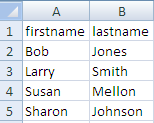
Here is what the data in Excel looks like.

Example 1 - Unicode data types in SQL Server

Our table 'unicode" is defined as follows:
CREATE TABLE [dbo].[unicode](
[firstName] [nvarchar](50) NULL,
[lastName] [nvarchar](50) NULL
) ON [PRIMARY]
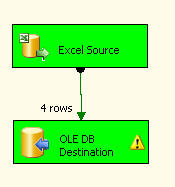
If we create a simple Data Flow Task and an Excel Source and an OLE DB Destination mapping firstname to firstname and lastname to lastname the import works great as shown below.

Example 2- non-Unicode data types in SQL Server

Our table 'non_unicode" is defined as follows:
CREATE TABLE [dbo].[non_unicode](
[firstName] [varchar](50) NULL,
[lastName] [varchar](50) NULL
) ON [PRIMARY]
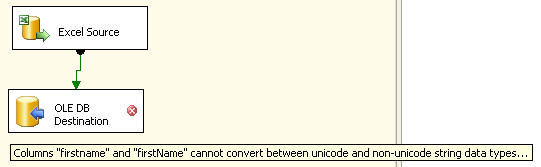
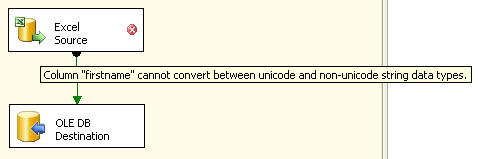
If we map the columns firstname to firstname and lastname to lastname we automatically get the following error in the OLE DB Destination.
Columns "firstname" and "firstname" cannot convert between unicode and non-unicode data types...
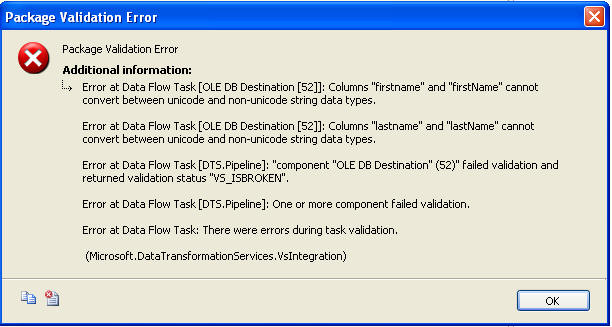
If we execute the task we get the following error dialog box which gives us additional information.

Solving the Problem

So based on the error we need to convert the data types so they are the same types.
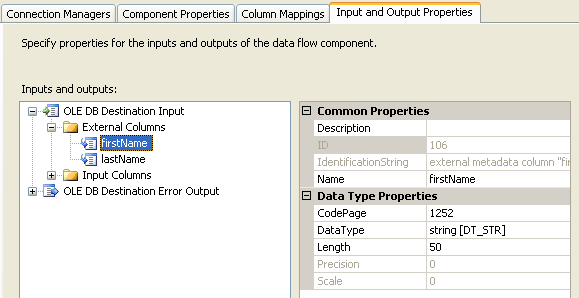
If you right click on the OLE Destination and select "Show Advanced Editor" you have the option of changing the DataType from string [DT_STR] to Unicode string [DT_WSTR].  But once you click on OK it looks like the changed was saved, but if you open the editor again the change is gone and back to the original value.  This makes sense since you can not change the data type in the actual table.

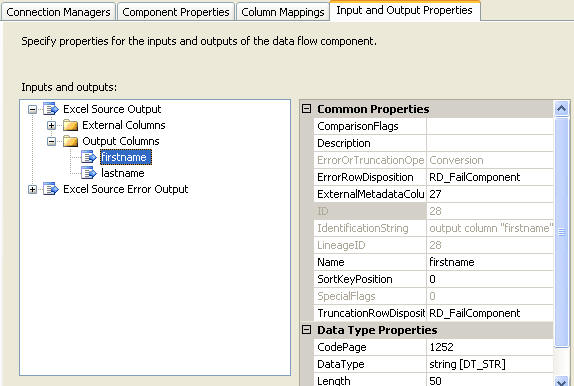
If you right click on the Excel Source and select "Show Advanced Editor" you have the option of changing the DataType from Unicode string [DT_WSTR] to string [DT_STR] and the change is saved. 
If you click OK the change is saved, but now you get the error in the Excel Source that you can not convert between unicode and non-unicode as shown below.  So this did not solve the problem either.

Using the Data Conversion Task

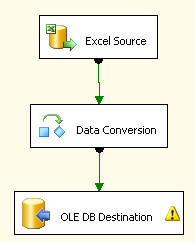
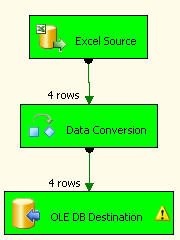
So to get around this problem we have to also use a Data Conversion task.  This will allow us to convert data types so we can get the import completed.  The following picture shows the "Data Conversion" task in between the Excel Source and the OLE DB Destination.
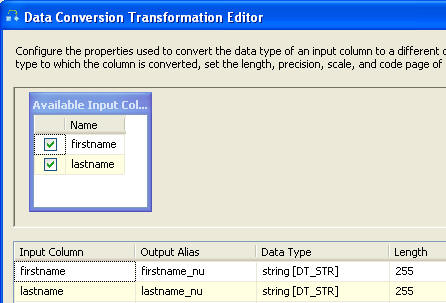
If you right click on "Data Conversion" and select properties you will get a dialog box such as the following.  In here we created an Output Alias for each column.
Our firstname column becomes firstname_nu (this could be any name you want) and we are making the output be a non-unicode string.  In addition we do the same thing for the lastname column.
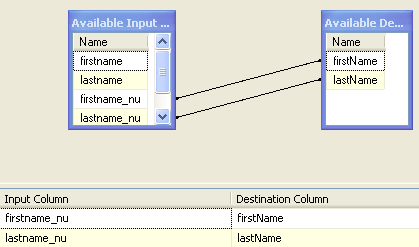
If we save this and change the mapping as shown to use our new output columns and then execute the task we can see that the import was successful.

As you can see this is pretty simple to do once you know that you need to use the Data Conversion task to convert the data types.

Tuesday, 28 June 2016

How to add Foreign Key in SQL Management Studio

I am going to show you , how to add a Foreign Key to a table from an another table in SQL Management Studio.
When you are dealing with the SQL data base with the .Net technologies , it is very easy to handle your SQL data base using the “SQL Management Studio“.
Lets see how can we do this….
Step 1
  • Go to the table design of selected DB table.
  • then select the attribute which needed to be set as foreign key .
sql_FK1
Step 2
  • Right click and get the menu, then select the “Relationships” from the menu
sql_FK2
  • then new window will appear..
sql_FK3
Step 3
Click on the [+] button under “Table And Columns Specifications” and then again click on the button which is in right side.
sql_FK4then new window will appear…
sql_FK5
Step 4
  • In new window fill needed info related to the FK.
  • Select Primary key table and Its Primary Key attribute.
  • Select the Foreign Key table and Foreign Key attribute.
sql_FK6sql_FK7
Step 5
  • Click OK button in current window and then click Close button in next window.
  • Now you have set Foreign Key to link tow tables.
  • You will see created FK in Keys dialog box also..
sql_FK8
Cheers..!  :-)

Friday, 17 June 2016

Convert Rows to Column using COALESCE() function

CREATE TABLE [dbo].[tbl_name](
      [name] [varchar](50) NULL,
      [city] [varchar](50) NULL
) ON [PRIMARY]
GO
SET ANSI_PADDING OFF
GO
INSERT [dbo].[tst] ([name], [city]) VALUES (N'm', N'c1')
INSERT [dbo].[tst] ([name], [city]) VALUES (N'm', N'c2')
INSERT [dbo].[tst] ([name], [city]) VALUES (N'm', N'c3')
INSERT [dbo].[tst] ([name], [city]) VALUES (N'n', N'd1')
INSERT [dbo].[tst] ([name], [city]) VALUES (N'n', N'd2')
INSERT [dbo].[tst] ([name], [city]) VALUES (N'p', N'e1')
INSERT [dbo].[tst] ([name], [city]) VALUES (N'p', N'e2')
INSERT [dbo].[tst] ([name], [city]) VALUES (N'p', N'e3')


DECLARE @eMailList nvarchar(max)
SELECT @eMailList = COALESCE(@eMailList + ';', '') +
  CAST(name AS nvarchar(max))
FROM tbl_name

Select @eMailList as eMailList


For Multiple Column:

SELECT name, city = STUFF(( SELECT ', ' + city
                            FROM dbo.tbl_name
                            WHERE name = x.name
                            FOR XML PATH(''), TYPE).value('.[1]','nvarchar(max)'), 1, 2, '')
FROM dbo.tbl_name AS x
GROUP BY name